
Operating System Services
🔑 Key Takeaways & Definition
- ● Definition: Operating System Services are the specific functions and environment provided by the OS to programs and users to execute tasks efficiently.
- ● Core Concept: These services act as an interface between the running program and the underlying hardware.
- ● Key Objective: To make the programming task easier (User View) and to ensure efficient system operation (System View).
Introduction to Operating System Services
An Operating System provides an environment for the execution of programs. It provides certain services to programs and to the users of those programs. These services differ from one operating system to another, but there are some common classes that identify the core purpose of an OS.
Operating System services are the bridge between the complex hardware and the simple user experience. Without these services, every programmer would need intimate knowledge of hardware specifications, making software development nearly impossible for most applications.
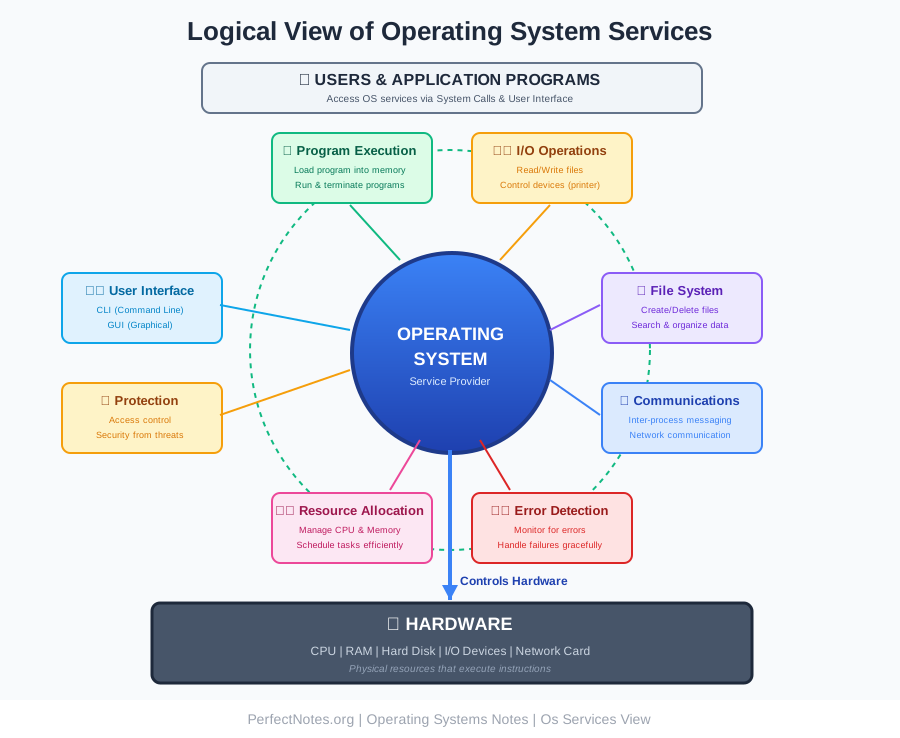
Need for Operating System Services
Abstraction:
Hides the messy details of hardware from the programmer. You don't need to know how the hard disk motor works to save a file. The OS provides a simple save() function that handles all the complex hardware interactions.
Example: When you click "Save" in Microsoft Word:
- ✗ You don't write code to control disk platters
- ✗ You don't calculate file allocation table entries
- ✗ You don't manage disk sector addresses
- ✓ The OS handles all of this through its File System service
Efficiency:
Manages resources (CPU, RAM) so multiple users can work without crashing the system. Without OS services, programs would fight for resources, leading to system instability.
Example: Multiple Chrome tabs, Spotify, and Microsoft Word running simultaneously:
- ● OS Resource Allocation service shares CPU time fairly
- ● Memory Management prevents one app from crashing another
- ● Scheduling ensures smooth multitasking
Convenience:
Makes tasks like printing a document or connecting to WiFi a simple one-click process.
Example: Printing a document:
- ✗ Without OS: Write 500+ lines of code to control printer motors, ink jets, paper feed
- ✓ With OS: One system call
print()handles everything
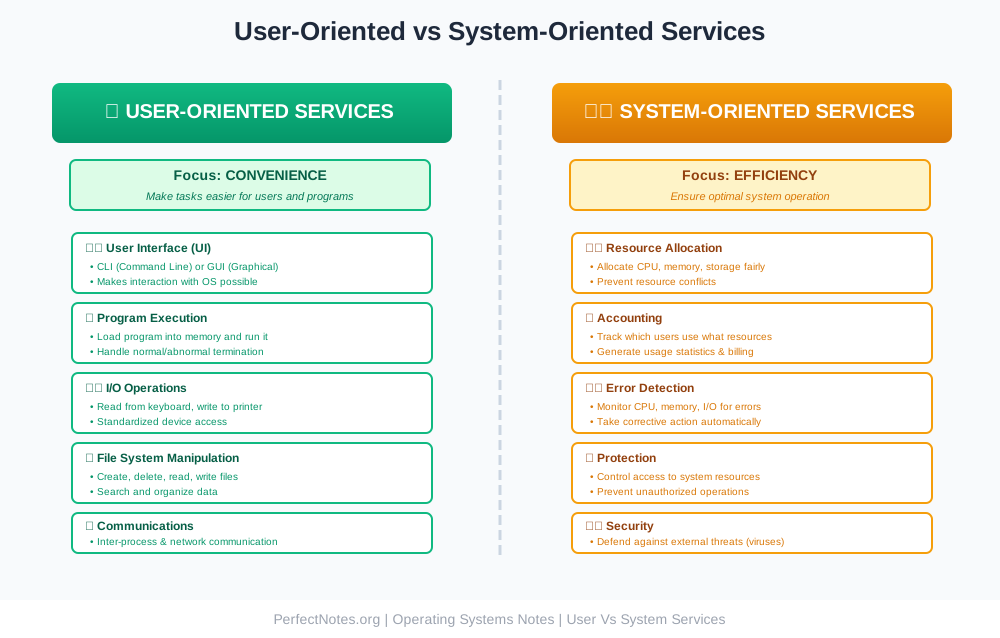
User-Oriented Operating System Services
These services are designed specifically to help the user perform tasks easily. They focus on convenience and usability.
User Interface (UI):
Every OS needs a way for the user to interact with the system.
Types:
Command Line Interface (CLI):
- ● Text-based interaction
- ● User types commands
- ● Fast and powerful for experts
- ● Examples: MS-DOS, Unix Shell, Windows PowerShell, Linux Terminal
Graphical User Interface (GUI):
- ● Visual interaction with windows, icons, menus
- ● User-friendly for beginners
- ● Examples: Windows 11, macOS, Ubuntu Desktop
- ● Features: Point-and-click, Visual feedback, WIMP (Windows, Icons, Menus, Pointer), Drag and drop
Modern Hybrid:
- ● Touch interfaces (smartphones, tablets)
- ● Voice interfaces (Siri, Cortana, Google Assistant)
- ● Gesture controls
Program Execution:
The system must be able to load a program into memory and run it. It must also handle program termination, whether normal or abnormal (crashing).
Process:
- ● Load: Read program from disk into RAM
- ● Allocate: Assign memory and resources
- ● Execute: Start running instructions
- ● Terminate: Clean up resources when done
Termination Types:
- ● Normal Termination: Program finishes successfully (exit code 0)
- ● Abnormal Termination: Program crashes (segmentation fault, divide by zero)
Example: When you double-click Chrome:
- 1. OS loads Chrome executable from
C:\Program Files\Google\Chrome\ - 2. Allocates 200MB+ RAM for the process
- 3. Creates process ID (PID)
- 4. Starts execution
- 5. When you close Chrome, OS deallocates all resources
I/O Operations:
A running program may require I/O (Input/Output). This could involve a file or an I/O device (tape drive, printer). The OS provides a standard interface to access these devices.
Types of I/O:
- ● File I/O: Reading/writing files
- ● Device I/O: Keyboard input, printer output, scanner
- ● Network I/O: Sending/receiving data over internet
Why OS Manages I/O:
- ● Standardization: Same
read()function works for files, keyboard, network - ● Device Independence: Program doesn't need to know printer brand
- ● Buffering: OS buffers data for efficiency
- ● Error Handling: OS handles device errors gracefully
File System Manipulation:
Programs need to read and write files and directories. The OS allows users to create, delete, search, and list file information.
Operations Provided:
- ● Create: Make new files/folders
- ● Delete: Remove files/folders
- ● Open/Close: Access files for reading/writing
- ● Read/Write: Data operations
- ● Rename: Change file names
- ● Copy/Move: Duplicate or relocate files
- ● Search: Find files by name/content
- ● Permissions: Control who can access files
Metadata Management:
- ● File name
- ● Size (bytes)
- ● Creation date
- ● Last modified date
- ● Permissions (read/write/execute)
- ● Owner
Communications:
Processes often need to exchange information. This can happen via Shared Memory or Message Passing (packets moved by the OS).
Methods:
Shared Memory:
- ● Two processes access same memory region
- ● Fast (no OS intervention after setup)
- ● Requires synchronization
- ● Example: Producer-Consumer problem
Message Passing:
- ● Processes send messages through OS
- ● Slower but safer
- ● OS handles synchronization
- ● Example: Email between applications
Types of Communication:
- ● Inter-Process Communication (IPC): Between processes on same computer
- ● Network Communication: Between processes on different computers
Examples:
- ● Copy-paste between applications (shared clipboard)
- ● Chrome tabs communicating
- ● Client-server architecture (browser ↔ web server)
System-Oriented Operating System Services
These services ensure the efficient operation of the system itself, rather than helping the user directly. They focus on efficiency and system optimization.
Resource Allocation:
When multiple users or jobs are running at the same time, resources (CPU cycles, main memory, file storage) must be allocated to each.
Resources Managed:
- ● CPU Time: Which process gets to execute
- ● Memory: RAM allocation for each program
- ● Disk Space: Storage for files
- ● I/O Devices: Printer, scanner access
- ● Network Bandwidth: Internet connection sharing
Allocation Strategies:
- ● Fair Share: Equal distribution
- ● Priority-Based: Critical tasks first
- ● First-Come-First-Serve: Queue-based
- ● Shortest Job First: Quick tasks prioritized
Example: Your computer running:
- ● Chrome (30% CPU, 2GB RAM)
- ● Spotify (5% CPU, 300MB RAM)
- ● Word (10% CPU, 500MB RAM)
- ● Antivirus (5% CPU, 200MB RAM)
OS Resource Allocation service ensures all get fair share without conflicts.
Accounting:
The OS keeps track of which users use how much and what kinds of computer resources. This is used for billing (in cloud systems) or usage statistics.
Tracked Metrics:
- ● CPU time consumed
- ● Memory used
- ● Disk storage occupied
- ● Network bandwidth consumed
- ● Number of files created
- ● Login/logout times
Use Cases:
- ● Cloud Computing: AWS bills you based on resource usage
- ● University Labs: Track student computer usage
- ● Corporate IT: Monitor employee resource consumption
- ● Performance Analysis: Identify resource-hungry applications
Error Detection:
The OS constantly checks for possible errors. Errors can occur in the CPU, memory hardware, I/O devices (paper jam), or in the user program (division by zero).
Error Types:
Hardware Errors:
- ● Memory parity errors
- ● Disk read/write failures
- ● CPU overheating
- ● Network connection loss
Software Errors:
- ● Division by zero
- ● Null pointer dereference
- ● Stack overflow
- ● Segmentation fault
I/O Errors:
- ● Printer out of paper
- ● Disk full
- ● USB device disconnected
Detection Mechanisms:
- ● Polling: OS regularly checks device status
- ● Interrupts: Hardware signals OS when error occurs
- ● Exception Handling: CPU detects illegal operations
- ● Checksums: Verify data integrity
Example: When you try to save a 5GB file but disk has only 2GB free:
- 1. OS detects insufficient space
- 2. Generates error message: "Not enough disk space"
- 3. Prevents data corruption
- 4. Suggests solution (delete files, use external drive)
Protection and Security:
Protection:
Ensuring that all access to system resources is controlled.
Mechanisms:
- ● Access Control Lists (ACL): Who can access which files
- ● User Permissions: Read, Write, Execute permissions
- ● Memory Protection: Processes can't access each other's memory
- ● Ring Levels: Kernel mode vs User mode separation
Security:
Defending the system from external threats (viruses, hackers).
Security Services:
- ● Authentication: Verify user identity (password, biometric)
- ● Authorization: Grant appropriate access levels
- ● Encryption: Protect data confidentiality
- ● Firewall: Block unauthorized network access
- ● Antivirus: Detect and remove malware
- ● Audit Logs: Track security events
Example: Windows Security features:
- ● Windows Defender (antivirus)
- ● Firewall (network protection)
- ● BitLocker (disk encryption)
- ● User Account Control (UAC)
- ● Windows Hello (biometric login)
⚠️ Importance of Operating System Services
Without these services, every programmer would have to write code to control the hardware directly.
Example: To save a file, you would have to write code to:
- • Spin the hard disk motor at exact RPM
- • Move the read/write head to correct track
- • Calculate sector addresses using complex algorithms
- • Handle disk caching and buffering
- • Manage file allocation tables
- • Handle concurrent access from other programs
With OS Services:
Simply call save("document.txt") and the OS handles everything!
Exam Tip:
Remember that System Calls are the "bridge" that allows a user program to access these OS services. The service is WHAT the OS does; the system call is HOW you ask for it.
Operating System Services vs System Calls
Use this table to answer "Difference between..." questions:
| Feature | OS Service | System Call |
|---|---|---|
| Definition | A function provided by the OS to the user/program | The programmatic way a program requests a service |
| Nature | High-level (What the OS does) | Low-level (How the OS is asked) |
| Access | Accessed via UI or API | Accessed via code (C/C++ functions) |
| Example | "File System Management" service | open(), read(), write() system calls |
| User View | "I want to print this file" | Call printer_write() function |
| Abstraction Level | Abstract concept | Concrete implementation |
| Who Provides | Operating System | Programming language library (libc) |
| Mode Switch | N/A | Triggers user mode → kernel mode switch |
Analogy:
- ● OS Service = Restaurant menu item ("Burger")
- ● System Call = Ordering mechanism (telling waiter "I want a burger")
Implementation of Operating System Services
Services are typically implemented using a System Call Interface.
How It Works:
Step-by-Step Process:
- ● User Action: User clicks "Save" button in application
- ● Application Code: Application calls system call
write() - ● Mode Switch: CPU switches from User Mode to Kernel Mode
- • User Mode: Limited privileges, can't directly access hardware
- • Kernel Mode: Full privileges, can control hardware
- ● System Call Handler: OS identifies which service is requested
- ● Service Execution: OS File System service:
- • Locates free disk space
- • Writes data to disk sectors
- • Updates file allocation table
- • Handles errors if disk is full
- ● Return Result: OS returns success/failure code to application
- ● Mode Switch Back: CPU switches from Kernel Mode back to User Mode
- ● User Feedback: Application shows "File saved successfully" message
Visual Flow:
Examples of Operating System Services
Windows Services:
Background processes that run without user intervention.
Common Windows Services:
- ● Windows Update: Automatically downloads and installs updates
- ● Print Spooler: Manages print jobs sent to printer
- ● Windows Defender: Real-time antivirus protection
- ● DHCP Client: Obtains IP address from network
- ● DNS Client: Resolves domain names to IP addresses
- ● Task Scheduler: Runs scheduled tasks
- ● Windows Audio: Manages audio for all applications
Accessing: Press Win + R → Type services.msc → Enter
Linux Daemons:
Similar to Windows services, these run in the background.
Common Linux Daemons:
- ● httpd: Web server (Apache)
- ● sshd: Secure Shell (remote access)
- ● crond: Schedule periodic tasks
- ● systemd: System and service manager
- ● mysqld: MySQL database server
- ● cupsd: Print server
- ● NetworkManager: Manages network connections
Evolution of Operating System Services
Cloud Integration:
Modern OS services now include cloud syncing built directly into the file system service.
Examples:
- ● Windows: OneDrive integrated into File Explorer
- ● macOS: iCloud Drive in Finder
- ● ChromeOS: Google Drive as primary storage
Impact:
- ● Files automatically sync across devices
- ● Automatic backup
- ● Access from anywhere
- ● Collaboration features built-in
AI Optimization:
Future services will use AI to predict and optimize system behavior.
Emerging AI Services:
- ● Intelligent Resource Allocation: Predicts which app you'll open next and preloads it
- ● Adaptive Power Management: Learns usage patterns to optimize battery
- ● Predictive Caching: Preloads frequently used files into RAM
- ● Smart Error Prevention: Detects potential failures before they occur
Example: Windows 11 AI features:
- ● Predicts next application based on time of day
- ● Optimizes CPU allocation for better responsiveness
- ● Learns which files you access together
Modern Service Examples:
Containerization Services:
- ● Docker integration in Windows/Linux
- ● Isolated application environments
- ● Resource allocation per container
Security Services:
- ● Real-time threat detection
- ● Behavioral analysis
- ● Zero-day exploit protection
Accessibility Services:
- ● Screen readers
- ● Voice control
- ● Eye tracking
- ● Magnification